A customer order describes what someone requested. A printer job describes a particular file and execution on a target machine. Depending on the item and batching, one order can lead to several printer jobs, or a job can produce several ordered units. Keep their relationship visible so a delayed, repeated, or cancelled print does not silently change the customer-facing record.
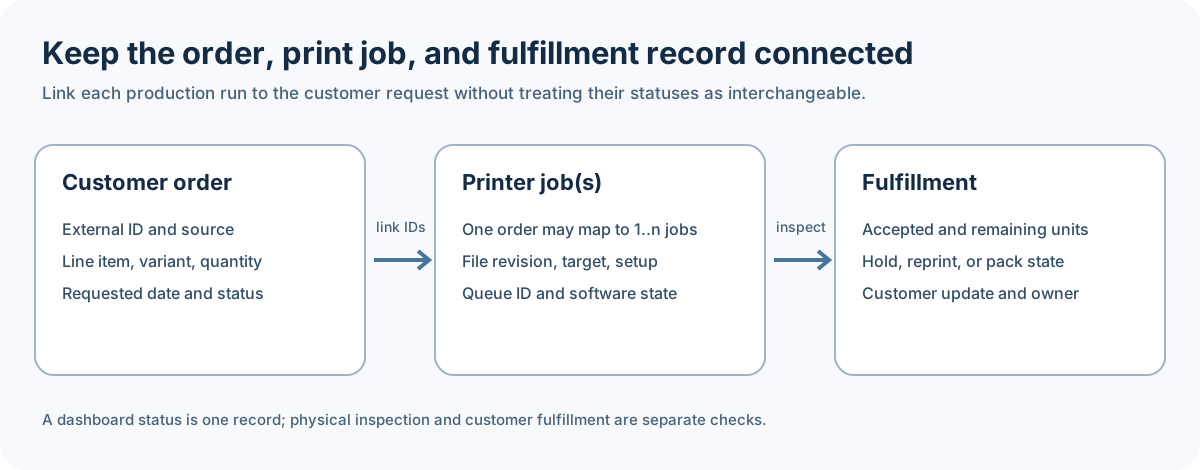
Keep three records connected
| Record | Keep with it | Question it answers |
|---|---|---|
| Customer order | Store or request source, external order ID, line item or SKU, variant, quantity, personalization, requested date, and current order status | What did the customer request? |
| Printer job | Order and line-item IDs, source project and file revision, slicer/profile, material and machine setup, exact printer target, queue or job ID, operator, and observed software state | Which print attempt was made, and where? |
| Fulfillment | Quantity inspected and accepted, held or reprinted units, finishing or packing state, customer update, responsible person, and time | What has been checked and communicated? |
Use stable order and job identifiers to connect these records. Do not replace the order’s item or customer details with a printer filename, or treat a queue entry as the full order history. If only part of an order is ready, keep the remaining quantity visible rather than closing the whole request by mistake.
Check how each order arrives
Orders may come from a connected store, an exported spreadsheet, or a manual request. For a CSV import, preserve the originating export and verify how its columns map to order IDs, variants, quantities, and personalization before using the imported record. A manual entry also needs an external reference or clear note tying it to the request. Reconcile repeated imports against existing order IDs before creating another production task.
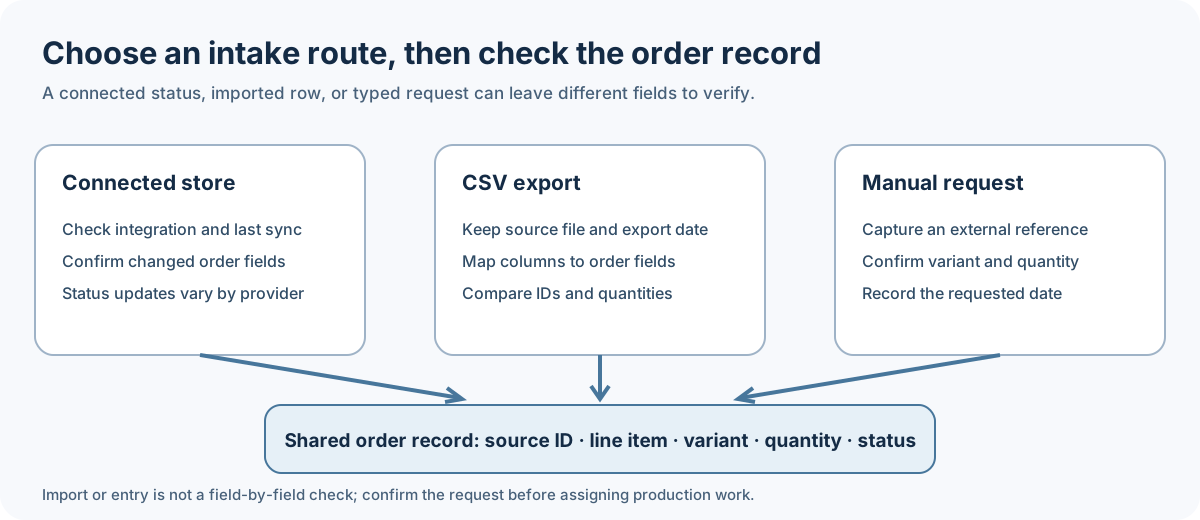
One provider-specific example is 3D Print Farm’s CSV and manual order guide , which describes mapping spreadsheet columns and assigning an imported order to a local printer. Its order-management documentation also describes connected-store status alongside CSV and manual intake. These are product descriptions, not a portable data format or a guarantee that a particular store’s latest changes have synced; check the current integration and account before relying on it.
Separate assignment, dispatch, and physical completion
An order assigned to a printer is not necessarily a file uploaded to that printer or a job that has started. In its product description, 3D Print Farm distinguishes printer assignment and order status from uploading or starting a print file. Record those steps separately: the external order ID, the generated or selected file, the target printer, the actual queue or job identifier, and the person responsible for checking the result.
Before closing an order, compare the produced quantity with the request and inspect the parts against the intended criteria. Record shortages, defects, reprints, or a changed delivery plan, then update the customer-facing status only when that action is appropriate for the actual fulfillment. A software label such as “printing” or “completed” describes a product’s workflow state; it does not by itself confirm the part count, physical condition, or shipment.
For queue transitions, printer assignment, and repeatability records, see Queues, Printer Groups, and Repeatability Records . For file, profile, target, and transfer checkpoints, see Local, Cloud, and Physical Job Handoff .
Back to top ↑