A successful upload is not the same as a verified job handoff. A sliced file can reach the wrong printer, resolve a different preset, or be sent with the wrong material or plate assumption. Choose the transfer path first, then preserve enough context to check what the target printer is actually being asked to do.
Choose the transfer path
| Path | Useful when | Dependencies to record | What it does not prove |
|---|---|---|---|
| Physical media | The printer is offline or the workflow must remain independent of a network service | Media identity, exported file, target printer, file-selection method, and the person who starts it | That the file was selected on the intended printer or matches its installed hardware |
| Local network or direct host | The printer and host are reachable on the same network, or a local controller is preferred | Host or printer identity, local service, authentication, firmware, file location, and connection test | That network reachability identifies the right machine or that a command completed physically |
| Cloud service | Remote access, account-based storage, or multi-printer visibility is useful | Account/service, supported model, cloud file or project identity, retention, target printer, and internet dependency | That the service is available during the whole job, preserved every profile field, or detected a physical failure |
| Slicer-to-printer handoff | The slicer offers a documented send, LAN, or host integration | Slicer and release, printer preset, material/process preset, output, selected device, and confirmation response | That the installed nozzle, plate, filament, or firmware matches the slicer selection |

These are workflow choices, not universal feature classifications. Prusa documents Prusa Connect as a cloud service and PrusaLink as a local-network service for the supported setups on its page. Bambu Studio release notes describe specific LAN/cloud fallback behavior, while Creality documents WLAN and SD-card paths as separate workflows. Check the exact model, firmware, application release, account, and service before treating any of those examples as available on your printer.
Build a handoff record before slicing or sending
Record the source and target separately. A useful minimum is:
| Record field | Example of what to capture |
|---|---|
| Source project | Project name or path, model revision, operator, and date |
| Slicer | Name, release, printer preset, filament preset, process preset, and profile revision |
| Printer target | Brand, exact model and variant, firmware, host/service, and stable device name or address |
| Physical setup | Nozzle diameter and material, plate surface/profile, filament product and dry state, and relevant maintenance state |
| Output | Exported file name and type, selected material mapping, layer/process assumptions, and a preview or file identifier when the service exposes one |
| Transfer | Physical media, local host, local network, or cloud path; upload result, file-selection result, and target confirmation |
| Start decision | Printer readiness, operator confirmation, first-layer owner, and rollback or stop path |

This is a record template, not a vendor-prescribed schema. PrusaSlicer vendor bundles show why profile identity matters: compatibility can depend on printer model or variant, nozzle diameter, extruder count, and slicer-version limits. An imported or copied profile is therefore a starting point for verification, not evidence that two machines will produce the same result.
Verify the handoff in order
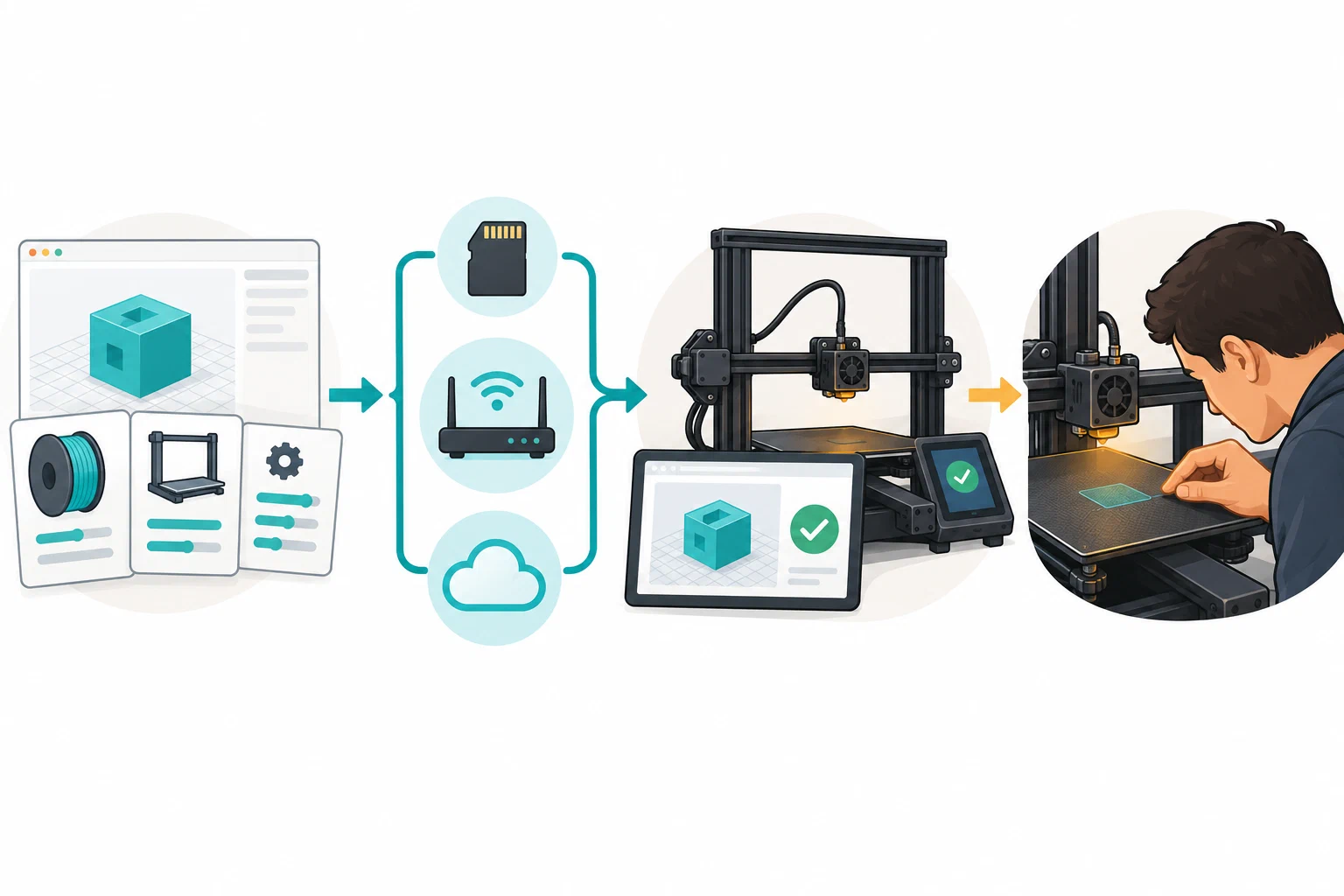
1. Confirm the source and the target
Before sending, compare the project or model revision with the intended job. Confirm the exact printer variant, firmware context, nozzle, plate, filament product, and dry state. If the target is a printer group, select one named machine rather than relying on a friendly label that could be duplicated.
2. Check what the transfer can change
Keep the source slicer release and profile names beside the exported file. When a workflow imports a project into another slicer, compare the resolved printer, material, and process settings after import. For example, Creality Print 7.0.0 documents that some incompatible printer parameters are not imported and that unsupported filament or process settings may be replaced by defaults for the selected printer preset. Do not treat an import that opens successfully as a profile-equivalence check.
For a physical-media transfer, compare the file name and output type on the media with the job record at the printer. For a host or service transfer, record the file identity, origin, upload result, and selected target if those fields are available. An exposed hash or size can help reconciliation, but no universal cross-platform integrity or retry rule is established here.
The handoff checkpoints differ by application. Creality Print’s quick-start guide asks you to choose the printer, nozzle, loaded filament, and print profile before slicing, then inspect the estimate and toolpath preview. Its LAN Print path selects a same-network printer; Export to Local leaves file transfer and starting at the printer to the operator. A listed device, preview, or saved file does not confirm printer-side receipt.
Prusa’s PrusaSlicer 3.0.0 first-print guide is marked as a Public Preview guide. It warns that opening a 3MF project may replace the selected printer, filament, and print settings, so compare the resolved setup and inspect the layer preview before choosing local or USB/SD export, Prusa Connect, or a network printer. For USB/SD writing, follow the guide’s Eject step before removing the media. These are version-specific software checkpoints, not a physical setup check.
The Printables integration has a separate direct-send condition: Prusa says the slicer must use the Connect account that owns the registered printer, and the target must match the printer for which the G-code was sliced. A PrusaSlicer notification after sending is not confirmation that the printer received or started the file. For a Creality Cloud shared file, compare the displayed printer and filament labels with the intended setup, then select a network-connected printer bound to the account. The documented flow asks the operator to check that the bed is clear before confirming. A community photo, print count, or matching label is context to inspect, not proof of compatibility or a successful result.
3. Confirm the software checkpoint, then the physical state
Use the target system’s own confirmation steps. In the documented Prusa Connect guide, the operator waits for an IDLE printer, uploads G-code, copies it to the printer, watches the transfer, checks that it appears in the latest uploads, and selects Start Print after verifying readiness. Creality’s documented LAN path uses a preview, printer selection, and confirmation before starting. These are useful software and operator checkpoints; they are not proof that the nozzle, plate, filament path, or workspace is correct.
Do not start when the target is ambiguous, the file is missing, the selected material or plate is wrong, a preset was silently replaced, or the service has not established the state the workflow requires. Resolve the discrepancy or choose a known-good local path instead of retrying blindly.
4. Confirm the first layer locally
For a new or changed printer, filament, nozzle, plate, firmware, slicer release, or profile, treat the first layer as a new test. A remote status can confirm a software state while missing a detached object, a blocked filament path, a dragging nozzle, or a workspace problem. Keep a person responsible for the physical check and record the result in the handoff record.
Close the loop after the send
Record whether the job was queued, selected, started, paused, cancelled, or stopped; which person or service performed each action; and what the printer and workspace inspection found. If the job is retried, retain the original file, target, profile version, and reason for retry. A retry is a new operational event, not evidence that the first transfer was harmless or idempotent.

For monitoring and event checkpoints, see remote monitoring, telemetry, and notifications . For a reusable queue and outcome record, see queues, printer groups, and repeatability records . If the job fails, use remote recovery, privacy, and safe stop boundaries and the printer’s current manual before issuing another command.
Back to top ↑