A profile is not invalidated by the word “update” alone. It becomes stale when the machine, software, or operating context no longer matches a field that the profile depends on. Some changes are low impact; others require a fresh identity check, calibration, or test before the profile can be trusted again.
Classify the change before editing the profile
| Change | What can become different | First applicability check | Typical status until checked |
|---|---|---|---|
| Firmware update | Feature gates, machine-side checks, default profiles, stored settings, or supported model/board combinations | Read the exact model-and-revision release notes and record the installed version | Requires verification; not automatically invalid |
| Slicer or vendor-bundle update | Printer, material, process, inheritance, or compatibility metadata | Compare the old and new preset versions and inspect release notes | Candidate for supersession or revalidation |
| Nozzle or hotend change | Diameter, nozzle system, adapter, thermal/extrusion behavior, minimum and maximum layer-height compatibility | Confirm the physical nozzle and update any manufacturer-required machine-side setting | Do not reuse unchanged nozzle-specific output until checked |
| Plate or bed change | Surface, plate temperature mapping, printable area, excluded regions, origin, or first-layer offset | Match the physical plate to the slicer profile and preview output | Requires a first-layer check |
| Extruder, feed-path, or automated-system change | Material loading, drive behavior, retraction, mapping, purge, or tool-change state | Reconcile the installed path and system firmware/profile with the project | Requires verification for affected materials and operations |
| Motion, board, sensor, or input-shaper change | Motion limits, resonance state, homing, calibration, or machine-side safety checks | Confirm the model-specific hardware state and required calibration | Requires model-specific revalidation |
| Enclosure or external-equipment change | Thermal environment, airflow, material applicability, and workspace controls | Reassess the material and workspace context; do not infer a universal enclosure rule | Context changed; profile may no longer represent the test |
| Controller or host configuration change | Geometry, origin, limits, persisted settings, warnings, authorization, or output route | Compare current machine/host state with the recorded profile | Requires verification if the output or motion context changed |
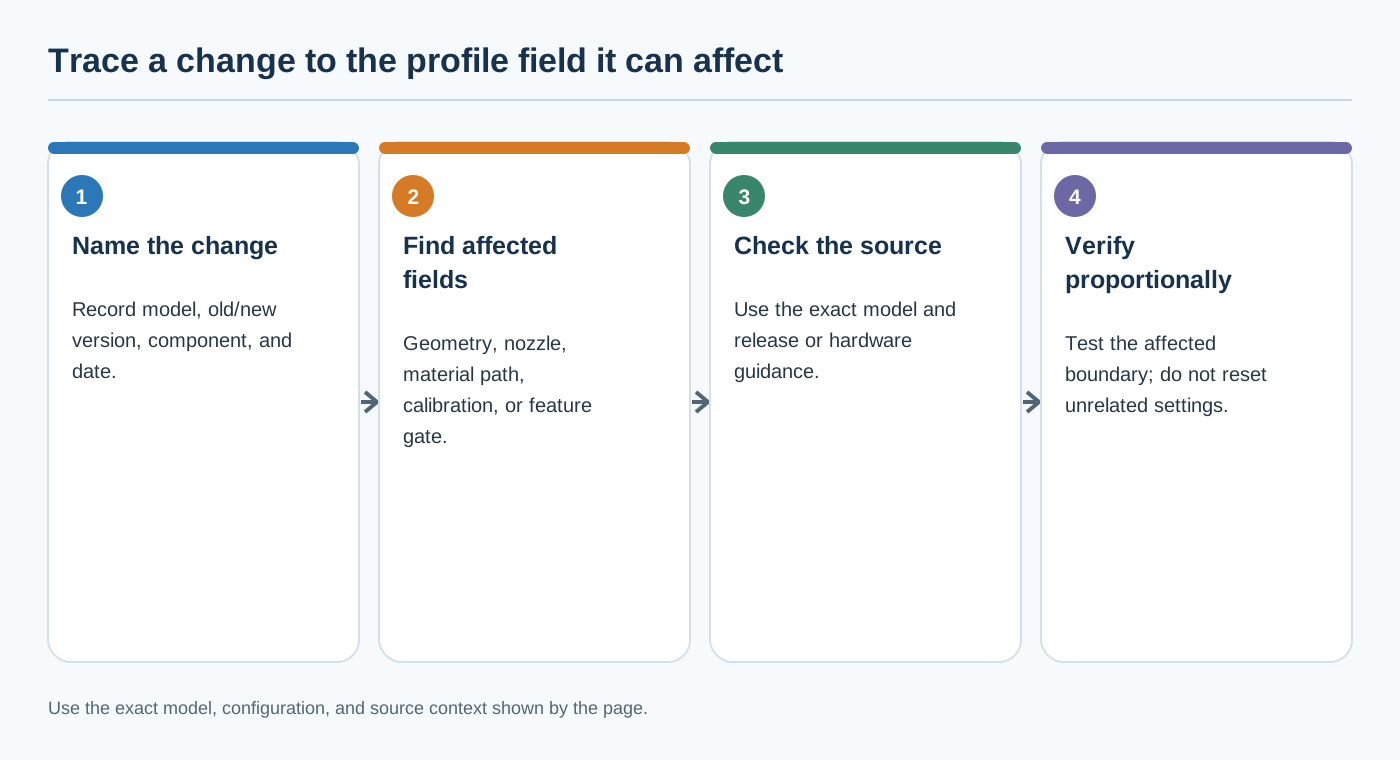
The table is a triage tool, not a universal impact matrix. Evidence for a Prusa nozzle procedure, Input Shaper feature, Marlin configuration, or Moonraker state applies to those named systems. It does not establish the same control or threshold for every printer.
Firmware does not mean “replace every profile”
Record the old and new firmware versions, printer family, board or revision, and the release-note entry that matters. Manufacturer release surfaces can be model- and family-scoped. Prusa documents examples where firmware releases change default Input Shaper profiles, MMU behavior, older-controller support, or calibration behavior; that does not prove that every profile needs replacement after every release. Creality’s firmware workflow likewise requires selecting the exact product model, and a historical Creality Print release listed a model set plus a K1 Max firmware recommendation. Neither source is a current universal compatibility matrix.
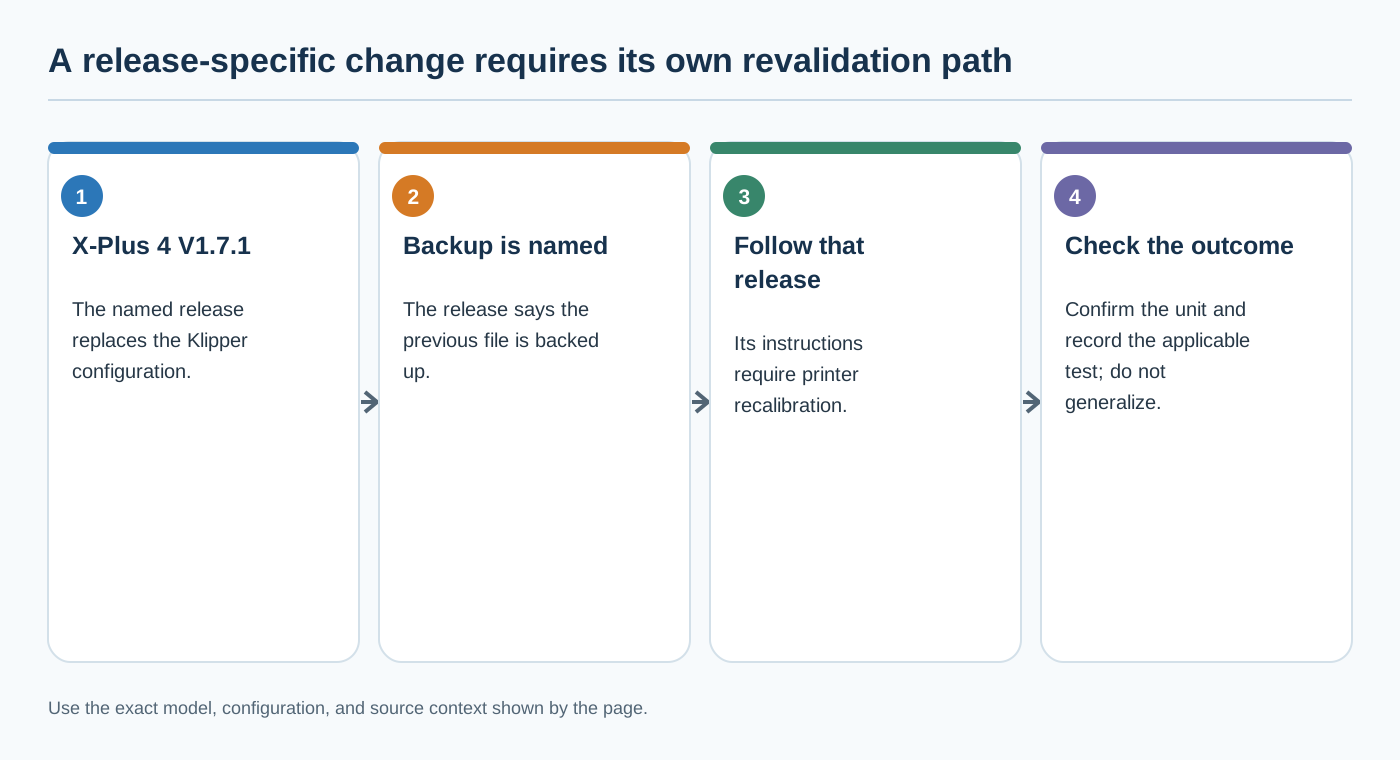
A bounded release example shows why the version matters: QIDI’s X-Plus 4 V1.7.1 release note says the update replaces the Klipper configuration file, backs up the previous file as printer_{datetime}.cfg, and requires printer recalibration. That instruction applies to this printer and release; it does not establish the required routines for every hardware revision. Record the installed version and follow the current model-specific release guidance before deciding whether an existing profile still applies.
If the printer reports a model, hardware, or board mismatch, treat that as an identity problem first. Do not bypass it because a filename or family name looks close. Confirm the exact model, revision, and manufacturer firmware package using the current model-specific support path. When a source only establishes a model-specific diagnostic, keep the advice model-specific.
Hardware changes are profile changes when they alter inputs
A nozzle swap is a clear example. Prusa’s MK4S/MK3.9S maintenance guidance asks the operator to update the nozzle diameter and type in the printer’s Hardware settings after a change, and PrusaSlicer may mark material profiles incompatible when nozzle settings change. A warning-free software profile is still not proof that the physical print will succeed. For another printer family, the required machine-side field may be different or undocumented.
The same reasoning applies to a hotend, adapter, extruder, feed path, plate, board, sensor, or enclosure. Record the installed state and ask which profile inputs it changes:
- Does the printer identify a different nozzle or hardware family?
- Did the printable geometry, origin, excluded area, or Z offset change?
- Did the material path or automated system change?
- Does a calibration result belong to the old hardware?
- Does the firmware or controller configuration contain a new limit, warning, or pending change?
- Does the workspace or enclosure context differ from the original test?
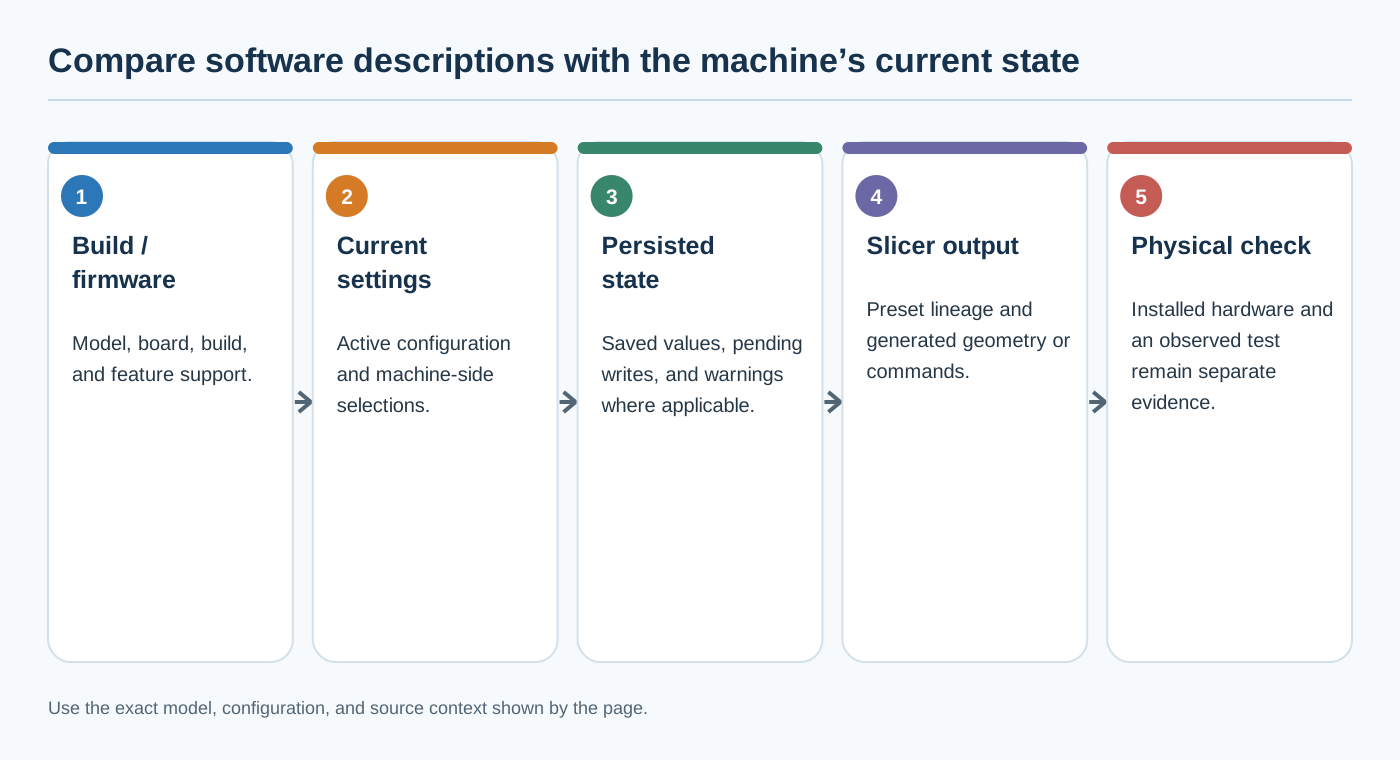
If the answer is unknown, preserve the old profile as historical context but mark its current applicability as unverified.
Upgrade eligibility and installed state
The CORE One+ upgrade path depends on the machine’s starting generation:
| Starting machine | Route to CORE One+ (Gen 2) | Required check |
|---|---|---|
| Original CORE One (1st release) | CORE One → CORE One+ → CORE One+ (Gen 2) | Two upgrade kits, installed consecutively |
| CORE One+ (2nd release) | CORE One+ → CORE One+ (Gen 2) | Gen 2 upgrade kit |
| MK4S | Direct conversion to CORE One+ (Gen 2) | Black PSU; a silver PSU also needs the black PSU and specified PSU-xBuddy power and power-panic cables |
Identify the starting generation from the original order or serial label, and match the assembly manual to the kit box; do not mix kit versions. The INDX multi-material system is independent of Gen 2 and can be installed on any CORE One generation. A separate MK4S/MMU3 conversion guide adds exact unit, fitting, buffer, and kit-version checks. These source-specific conditions determine eligibility, not installed state or conversion completion; verify the actual machine before treating a destination profile as applicable.
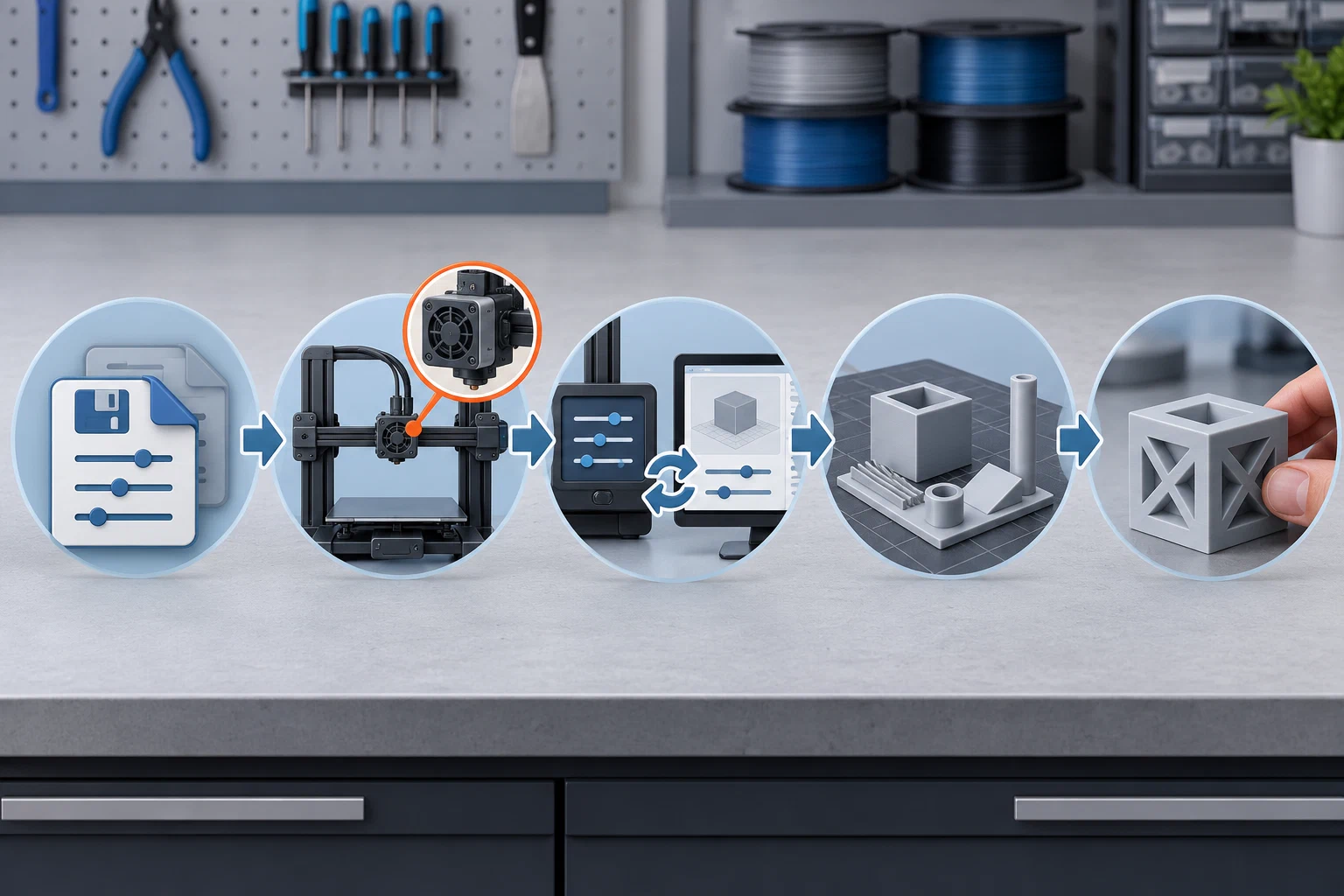
A staged revalidation sequence
Use the smallest sequence that addresses the change, but do not skip identity checks for convenience.
1. Freeze the old context
Save the profile or project without overwriting it. Record printer model and variant, firmware, board or upgrade state, nozzle, plate, material, slicer and preset versions, calibration state, test object, and date. Remove credentials before sharing or archiving a reusable profile.
2. Resolve identity and applicability
Confirm the physical machine and installed component. Read the exact manufacturer support page or release note for the model and revision. For slicer changes, compare the vendor bundle or profile version and its compatibility fields. A profile that names a machine but cannot be matched to its physical state is not yet reusable.
3. Reconcile machine-side settings
Apply only the model-specific configuration steps documented by the manufacturer. This may include nozzle diameter/type, plate selection, firmware feature state, board or controller configuration, calibration state, or a saved-settings migration. For Marlin, build-time configuration and persisted EEPROM values are separate layers; for Klipper/Moonraker, parsed settings, pending writes, and warnings also need review. Do not assume that a copied configuration file is the complete machine state.
4. Check the first layer and output geometry
Preview the sliced output with the actual plate and profile. Verify the bed shape, origin, excluded regions, printable height, and Z offset. Then use an appropriate first-layer check on the named printer and plate. A slicer field describes the exported coordinates; it does not certify the physical endstop, clearance, or plate.
5. Recheck the affected process variables
If the change affects extrusion or material handling, check temperature, flow, volumetric limit, retraction, and related material settings with a suitable calibration method. If it affects motion or resonance, use the manufacturer’s applicable motion or input-shaper calibration. If it affects enclosure or workspace assumptions, reassess the material and environmental context rather than changing a number by guesswork.
6. Run a representative verification print
Choose a test that exercises the changed boundary and record the result, conditions, and remaining limitations. A first-layer check cannot validate a motion change, and a visually good small cube cannot prove a new automated material path. Link the result to the new profile version and mark the old one as superseded only when the new context is documented.
Stop and follow the current manufacturer procedure if firmware recovery, heating, motion, electrical access, or hotend service is involved. This guide does not replace model-specific maintenance or firmware instructions.
Decide whether the old profile survives
Keep an old profile as reusable only when all of the following remain true:
- the exact printer and variant match;
- installed nozzle, plate, feed path, firmware, and relevant calibration state match;
- the slicer, printer, material, and process presets are compatible;
- the release notes do not identify a relevant change;
- the original test context still describes the intended print; and
- a preview or verification check has not exposed a mismatch.
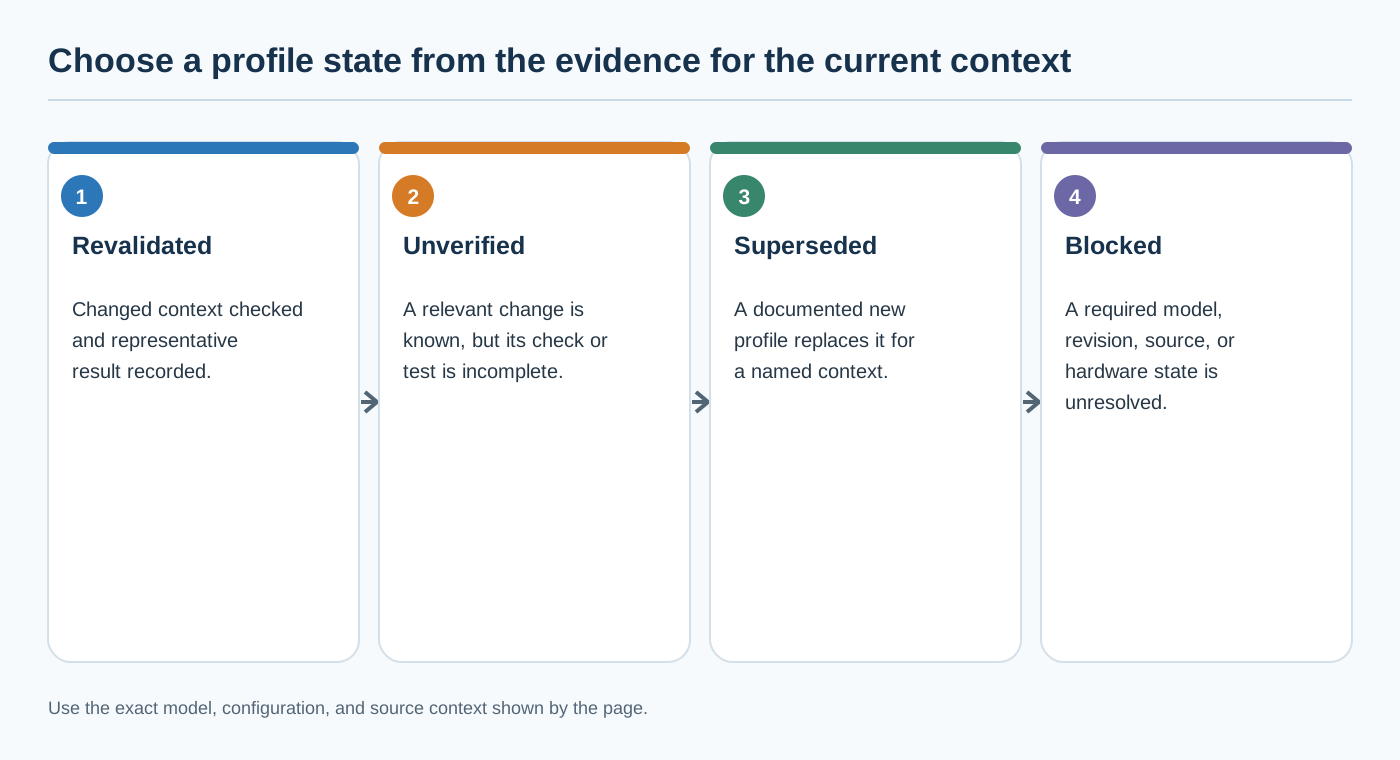
Otherwise, use one of these states:
- Revalidated: the changed context was checked and the representative result was recorded.
- Superseded: a new profile replaces the old one for a named context; retain the old record for traceability.
- Unverified: the change is known but the required check or test has not been completed.
- Blocked: a required model, revision, source, or hardware state cannot be identified safely.
Do not call a profile invalid merely because a newer version exists. Do not call it valid merely because the printer still starts a job. Applicability is the relationship between the exact machine, profile, and test context. For a tested starting value after revalidation, publish the result in the Settings Library; keep this category focused on the identity and compatibility boundary.
Back to top ↑